
🍴 上篇:基础安装篇
一、本篇解决:
- 安装 Starship
- PowerShell 自动加载
- VSCode 图标乱码问题
二、安装 Starship
在 PowerShell 输入:
1
| winget install Starship.Starship
|
测试:
三、让 PowerShell 自动加载
打开 Profile:
如果不存在:
1
| New-Item -ItemType File -Path $PROFILE -Force
|
写入:
1
| Invoke-Expression (&starship init powershell)
|
保存。
四、测试是否成功
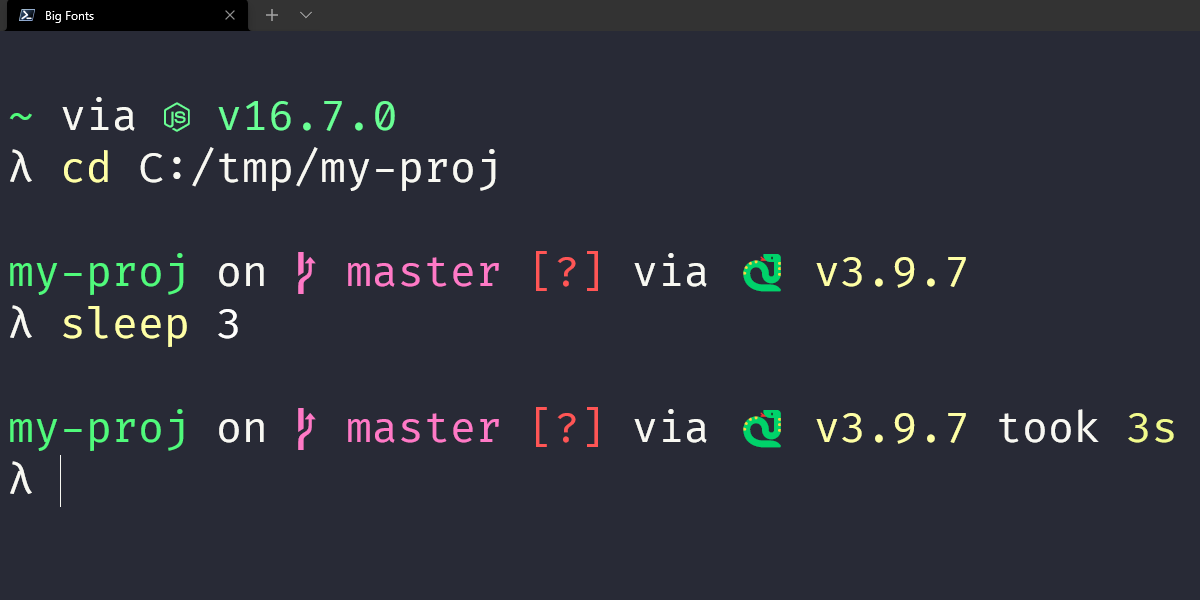
正常显示分隔块即成功。
五、其他效果示例

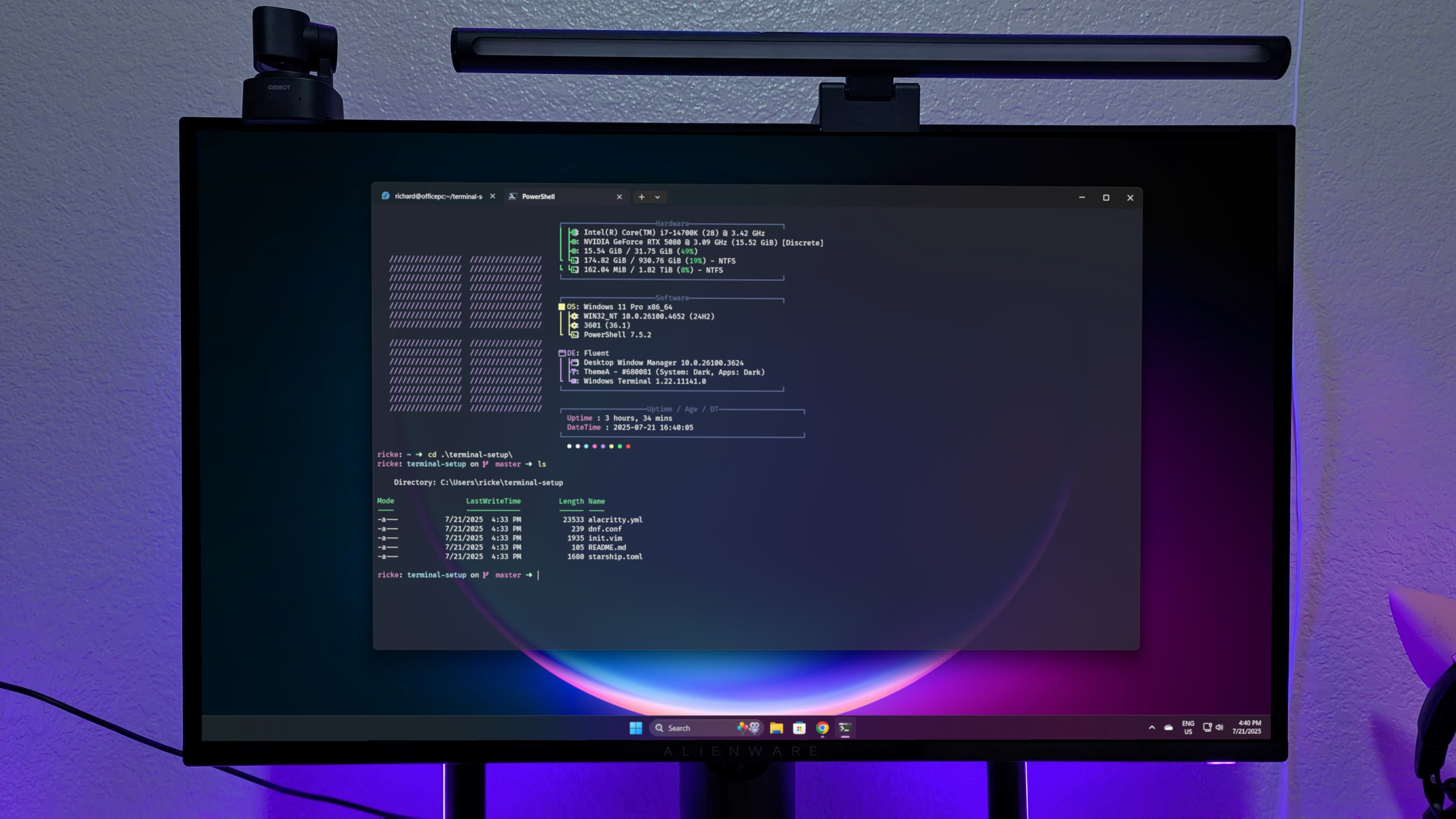
🎨 下篇:高级美化篇
本篇内容:
一、创建 starship.toml
1
2
| New-Item -ItemType Directory -Path $env:USERPROFILE\.config -Force
notepad $env:USERPROFILE\.config\starship.toml
|
配置
要开始配置 starship,请创建以下文件: ~/.config/starship.toml.
1
| mkdir -p ~/.config && touch ~/.config/starship.toml
|
我选用的是Gruvbox Rainbow Preset
This preset is heavily inspired by Pastel Powerline, and Tokyo Night.
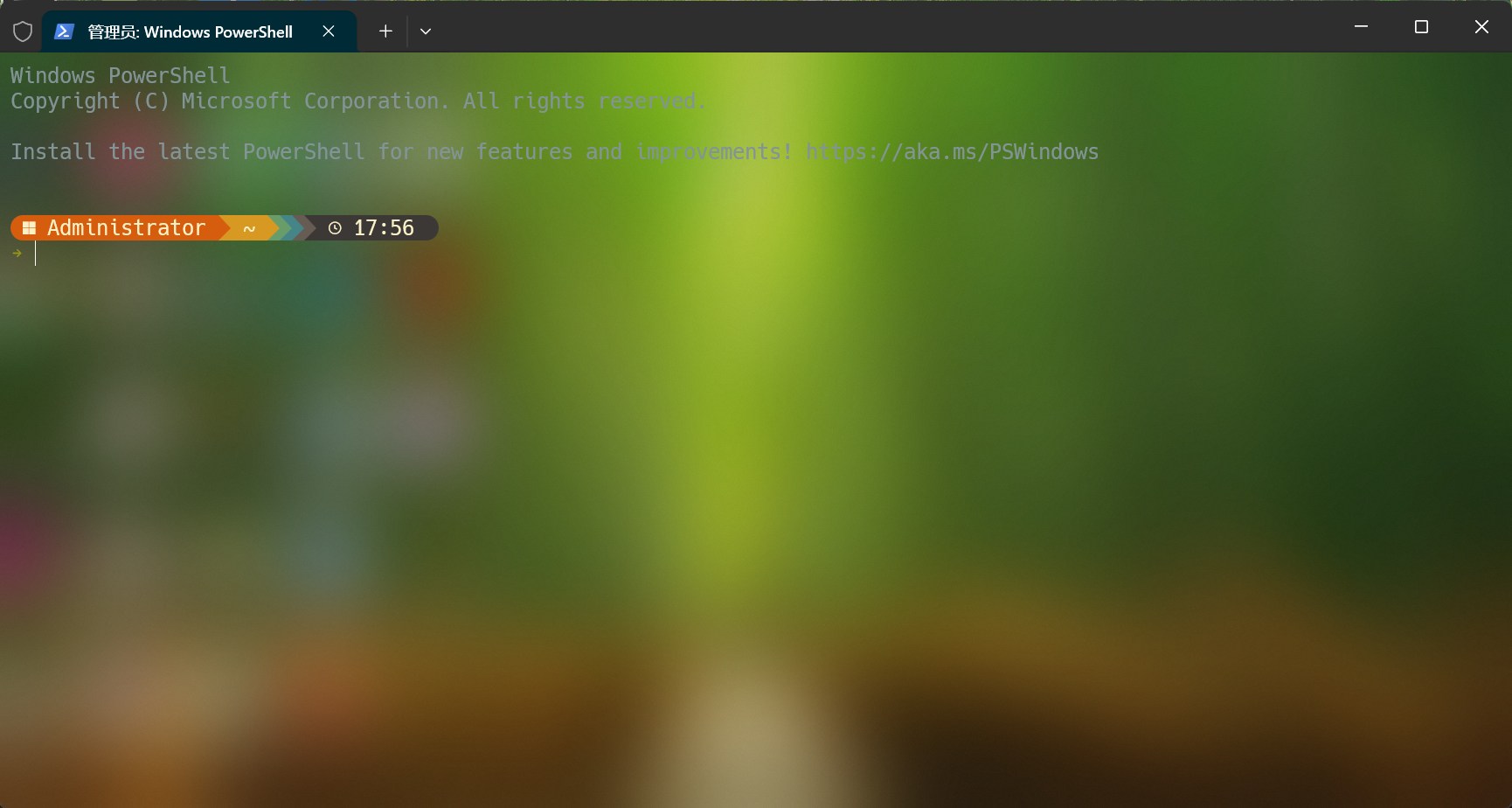
二、黑客风配置(Hack Nerd Font Mono 风格)
官方配置地址:https://starship.rs/presets/gruvbox-rainbow
写入文件: ~/.config/starship.toml.
1
2
3
4
5
6
7
8
9
10
11
12
13
14
15
16
17
18
19
20
21
22
23
24
25
26
27
28
29
30
31
32
33
34
35
36
37
38
39
40
41
42
43
44
45
46
47
48
49
50
51
52
53
54
55
56
57
58
59
60
61
62
63
64
65
66
67
68
69
70
71
72
73
74
75
76
77
78
79
80
81
82
83
84
85
86
87
88
89
90
91
92
93
94
95
96
97
98
99
100
101
102
103
104
105
106
107
108
109
110
111
112
113
114
115
116
117
118
119
120
121
122
123
124
125
126
127
128
129
130
131
132
133
134
135
136
137
138
139
140
141
142
143
144
145
146
147
148
149
150
151
152
153
154
155
156
157
158
159
160
161
162
163
164
165
166
167
168
169
170
171
172
173
174
175
176
177
178
179
180
181
| "$schema" = 'https://starship.rs/config-schema.json'
format = """
[](color_orange)\
$os\
$username\
[](bg:color_yellow fg:color_orange)\
$directory\
[](fg:color_yellow bg:color_aqua)\
$git_branch\
$git_status\
[](fg:color_aqua bg:color_blue)\
$c\
$cpp\
$rust\
$golang\
$nodejs\
$php\
$java\
$kotlin\
$haskell\
$python\
[](fg:color_blue bg:color_bg3)\
$docker_context\
$conda\
$pixi\
[](fg:color_bg3 bg:color_bg1)\
$time\
[ ](fg:color_bg1)\
$line_break$character"""
palette = 'gruvbox_dark'
[palettes.gruvbox_dark]
color_fg0 = '#fbf1c7'
color_bg1 = '#3c3836'
color_bg3 = '#665c54'
color_blue = '#458588'
color_aqua = '#689d6a'
color_green = '#98971a'
color_orange = '#d65d0e'
color_purple = '#b16286'
color_red = '#cc241d'
color_yellow = '#d79921'
[os]
disabled = false
style = "bg:color_orange fg:color_fg0"
[os.symbols]
Windows = ""
Ubuntu = ""
SUSE = ""
Raspbian = ""
Mint = ""
Macos = ""
Manjaro = ""
Linux = ""
Gentoo = ""
Fedora = ""
Alpine = ""
Amazon = ""
Android = ""
AOSC = ""
Arch = ""
Artix = ""
EndeavourOS = ""
CentOS = ""
Debian = ""
Redhat = ""
RedHatEnterprise = ""
Pop = ""
[username]
show_always = true
style_user = "bg:color_orange fg:color_fg0"
style_root = "bg:color_orange fg:color_fg0"
format = '[ $user ]($style)'
[directory]
style = "fg:color_fg0 bg:color_yellow"
format = "[ $path ]($style)"
truncation_length = 3
truncation_symbol = "…/"
[directory.substitutions]
"Documents" = " "
"Downloads" = " "
"Music" = " "
"Pictures" = " "
"Developer" = " "
[git_branch]
symbol = ""
style = "bg:color_aqua"
format = '[[ $symbol $branch ](fg:color_fg0 bg:color_aqua)]($style)'
[git_status]
style = "bg:color_aqua"
format = '[[($all_status$ahead_behind )](fg:color_fg0 bg:color_aqua)]($style)'
[nodejs]
symbol = ""
style = "bg:color_blue"
format = '[[ $symbol( $version) ](fg:color_fg0 bg:color_blue)]($style)'
[c]
symbol = " "
style = "bg:color_blue"
format = '[[ $symbol( $version) ](fg:color_fg0 bg:color_blue)]($style)'
[cpp]
symbol = " "
style = "bg:color_blue"
format = '[[ $symbol( $version) ](fg:color_fg0 bg:color_blue)]($style)'
[rust]
symbol = ""
style = "bg:color_blue"
format = '[[ $symbol( $version) ](fg:color_fg0 bg:color_blue)]($style)'
[golang]
symbol = ""
style = "bg:color_blue"
format = '[[ $symbol( $version) ](fg:color_fg0 bg:color_blue)]($style)'
[php]
symbol = ""
style = "bg:color_blue"
format = '[[ $symbol( $version) ](fg:color_fg0 bg:color_blue)]($style)'
[java]
symbol = ""
style = "bg:color_blue"
format = '[[ $symbol( $version) ](fg:color_fg0 bg:color_blue)]($style)'
[kotlin]
symbol = ""
style = "bg:color_blue"
format = '[[ $symbol( $version) ](fg:color_fg0 bg:color_blue)]($style)'
[haskell]
symbol = ""
style = "bg:color_blue"
format = '[[ $symbol( $version) ](fg:color_fg0 bg:color_blue)]($style)'
[python]
symbol = ""
style = "bg:color_blue"
format = '[[ $symbol( $version) ](fg:color_fg0 bg:color_blue)]($style)'
[docker_context]
symbol = ""
style = "bg:color_bg3"
format = '[[ $symbol( $context) ](fg:#83a598 bg:color_bg3)]($style)'
[conda]
style = "bg:color_bg3"
format = '[[ $symbol( $environment) ](fg:#83a598 bg:color_bg3)]($style)'
[pixi]
style = "bg:color_bg3"
format = '[[ $symbol( $version)( $environment) ](fg:color_fg0 bg:color_bg3)]($style)'
[time]
disabled = false
time_format = "%R"
style = "bg:color_bg1"
format = '[[ $time ](fg:color_fg0 bg:color_bg1)]($style)'
[line_break]
disabled = false
[character]
disabled = false
success_symbol = '[](bold fg:color_green)'
error_symbol = '[](bold fg:color_red)'
vimcmd_symbol = '[](bold fg:color_green)'
vimcmd_replace_one_symbol = '[](bold fg:color_purple)'
vimcmd_replace_symbol = '[](bold fg:color_purple)'
vimcmd_visual_symbol = '[](bold fg:color_yellow)'
|
三、效果示例

四、VSCode 图标乱码问题
但是,这时在 Visual Studio Code 中可能会看到:
原因:
VSCode 没有使用 Nerd Font。
五、安装 Nerd Font
推荐字体:
- Hack Nerd Font Mono
- CaskaydiaCove Nerd Font
下载地址:https://www.nerdfonts.com/font-downloads
六、设置 VSCode 字体
打开vscode:
快捷键Ctrl + Shift + P
→ Preferences: Open User Settings (JSON)
选择用户设置User Settings
写入:
1
2
3
4
| {
"terminal.integrated.fontFamily": "Hack Nerd Font Mono",
"terminal.integrated.fontLigatures": false
}
|
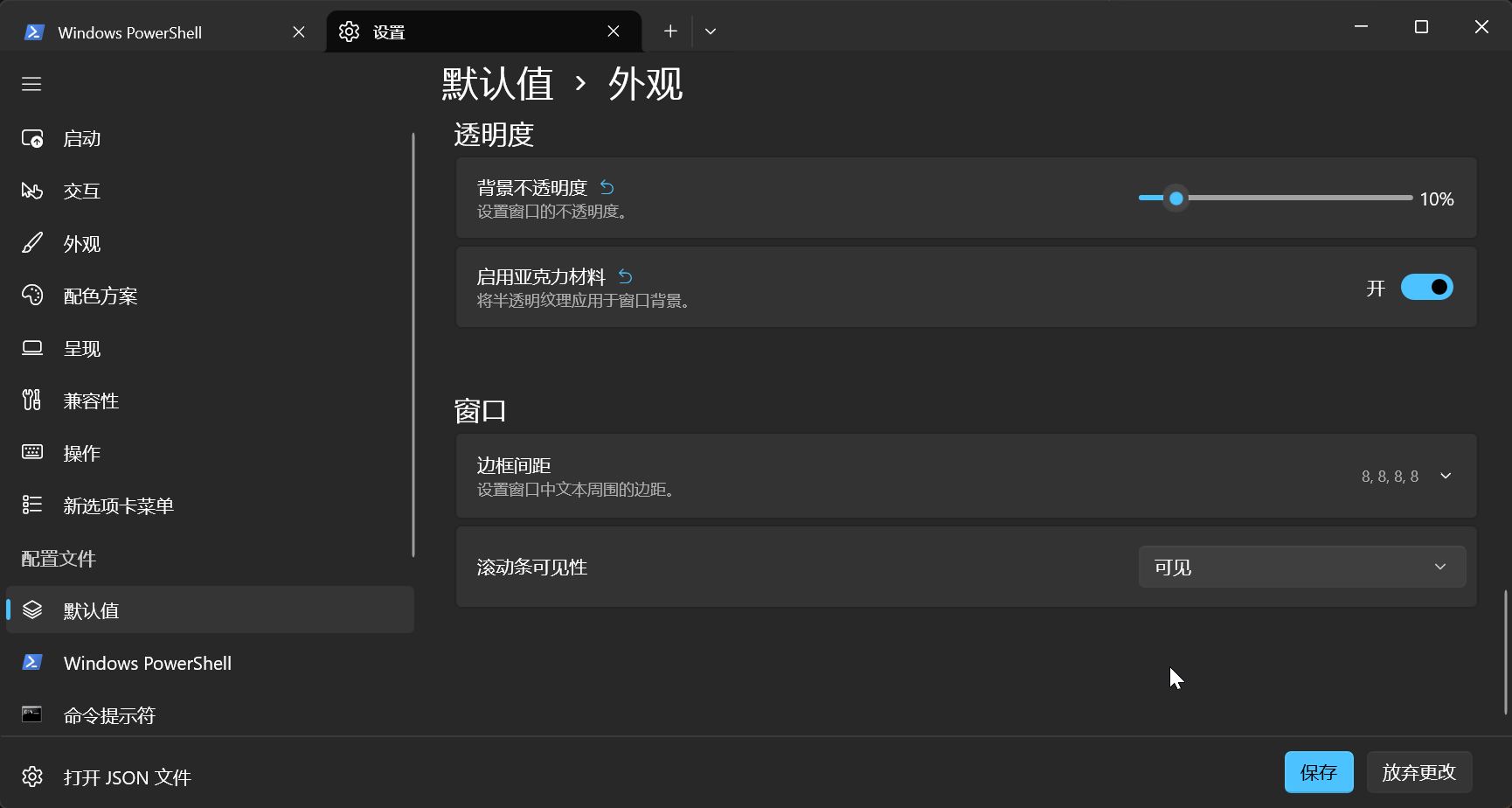
其、windows terminal 如何设置字体
安装下载的 nerd-font 字体, 然后按照下图进行设置
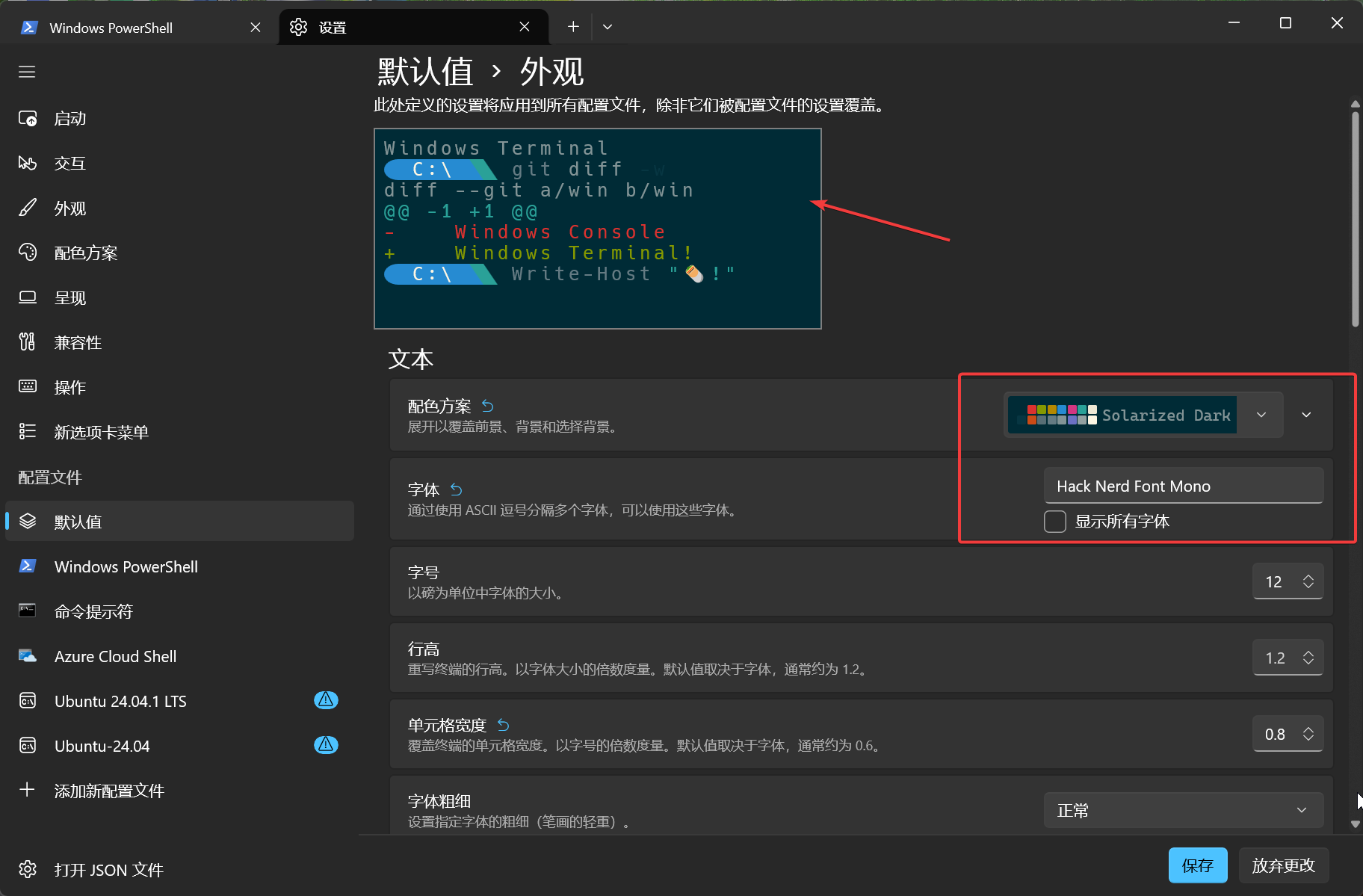
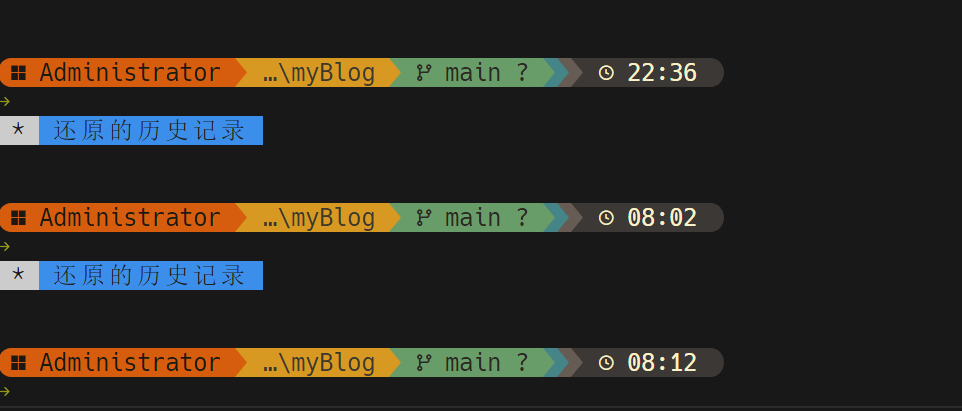
如果成功,vscode终端显示如下:
四、其他风格展示
极简风示例
1
2
3
4
5
6
7
| format = "$directory $character"
[directory]
style = "bold cyan"
[character]
success_symbol = "[➜](bold white)"
|
开发者全信息风
1
| format = "$directory $git_branch $nodejs $python $character"
|
五、其他可玩风格类型
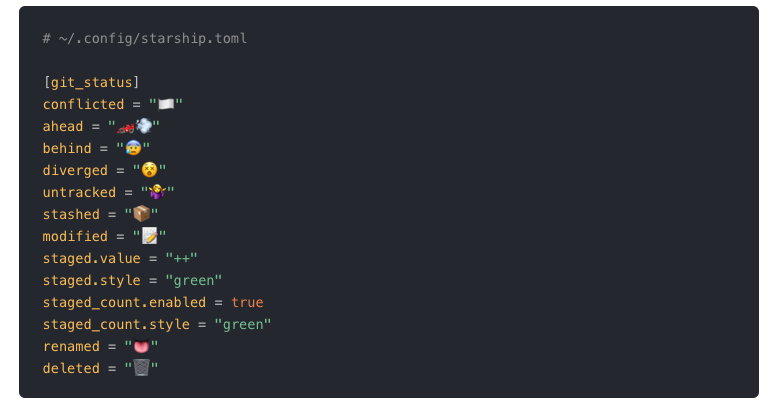
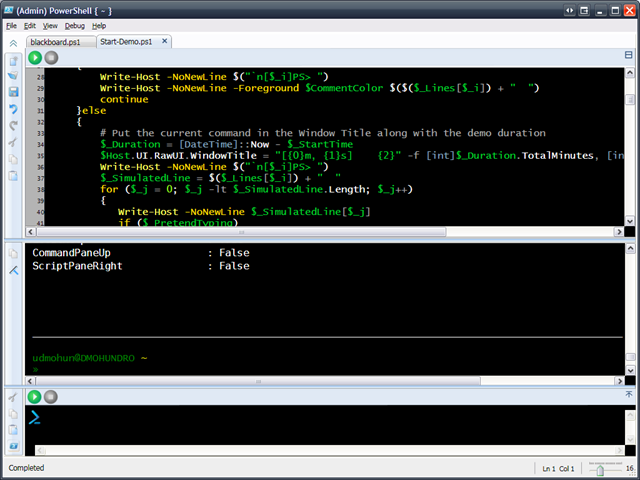


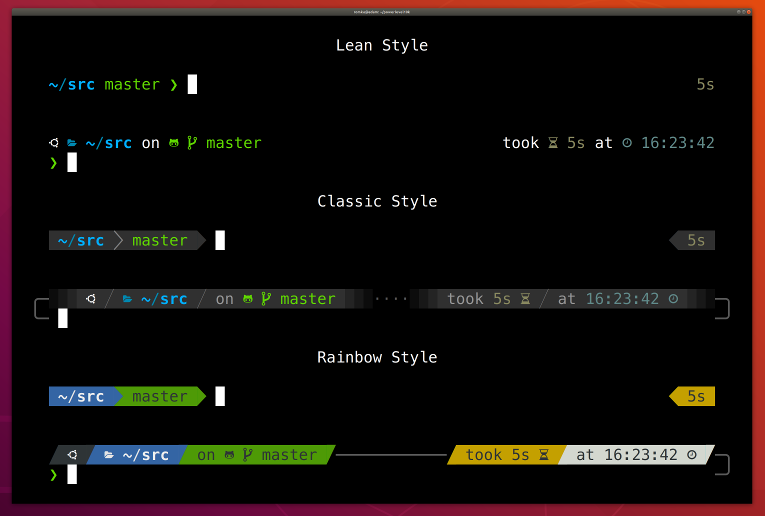
常见风格:
- 极简风
- Powerlevel10k 模拟风
- 黑客风
- Cyberpunk 霓虹风
- Mac 风格
结语
使用Starship对Windows 11 终端+vscode终端美化:
- PowerShell
- Starship
- Hack Nerd Font Mono
Starship 最大的魅力在于: